An Obsessive Compulsive Guide To Source Code Formatting

Most developers I know are pretty anal about the formatting of their source code. I used to think I was pretty obsessive compulsive about it, but then I joined Microsoft and faced a whole new level of OCD (Obsessive Compulsive Disorder). For example, many require all using statements to be sorted and unused statements to be removed, which was something I never cared much about in the past.

There’s no shortcut that I know of for removing unused using statements. Simply right click in the editor and select Organize Usings > Remove and Sort in the context menu.

SubtextSolution - Microsoft Visual Studio (Administrator) (2)

In Visual Studio, you can specify how you want code formatted by launching the Options dialog via Tools > Options and then select the Text Editor node. Look under the language you care about and there are multiple formatting options providing hours of fun fodder for religious debates.

Options

Once you have the settings just the way you want them, you can select the Edit > Advanced > Format Document (or simply use the shortcut CTRL + K, CTRL + D ) to format the document according to your conventions.

The problem with this approach is it’s pretty darn manual. You’ll have to remember to do it all the time, which if you really have OCD, is probably not much of a problem.

However, for those that keep forgetting these two steps and would like to avoid facing the wrath of nitpicky code reviewers (try submitting a patch to NuGet to experience the fun), you can install the Power Commands for Visual Studio via the Visual Studio Extension manager which provides an option to both format the document and sort and remove using statements every time you save the document.

I’m actually not a fan of having using statements removed on every save because I save often and it tends to remove namespaces containing extension methods that I will need, but haven’t yet used, such as System.Linq.

Formatting Every Document

Also, if you have a large solution with many collaborators, the source code can start to drift away from your OCD ideals over time. That’s why it would be nice to have a way of applying formatting to every document in your solution.

One approach is to purchase ReSharper, which I’m pretty sure can reformat an entire solution and adds a lot more knobs you can tweak for the formatting.

But for you cheap bastards, there are a couple of free approaches you can make. One approach is to write a Macro, like Brian Schmitt did. His doesn’t sort and remove using statements, but it’s a one line addition to add that.

Of course, the approach I was interested in trying was to use Powershell to do it within the NuGet Package Manager Console. A couple nights ago I was chatting with my co-worker and hacker extraordinaire, David Fowler, way too late at night about doing this and we decided to have a race to see who could implement it first.

I knew I had no chance unless I cheated so I wrote this monstrosity (I won’t even post it here I’m so ashamed). David calls it “PM code”, which in this case was well deserved as it was simply a proof of concept, but also because it’s wrong. It doesn’t traverse the files recursively. But hey, I was first! But I at least gave him the code needed to actually format the document.

It was very late and I went to sleep knowing in the morning, I’d see something elegant from David. I was not disappointed as he posted this gist.

He wrote a generic command named Recurse-Project that recursively traverses every item in every project within a solution and calls an action against each item.

That allowed him to easily write Format-Document which leverages Recurse-Project and automates calling into Visual Studio’s Format Document command.

function Format-Document {
  param(
    [parameter(ValueFromPipelineByPropertyName = $true)]
    [string[]]$ProjectName
  )
  Process {
    $ProjectName | %{ 
      Recurse-Project -ProjectName $_ -Action {
        param($item)
        if($item.Type -eq 'Folder' -or !$item.Language) {
          return
        }
    
        $win = $item.ProjectItem.Open('{7651A701-06E5-11D1-8EBD-00A0C90F26EA}')
        if ($win) {
          Write-Host "Processing `"$($item.ProjectItem.Name)`""
          [System.Threading.Thread]::Sleep(100)
          $win.Activate()
          $item.ProjectItem.Document.DTE.ExecuteCommand('Edit.FormatDocument')
          $item.ProjectItem.Document.DTE.ExecuteCommand('Edit.RemoveAndSort')
          $win.Close(1)
        }
      }
    }
  }
}

Adding Commands to NuGet Powershell Profile

Great! He did the work for me. So what’s the best way to make use of his command? I could add it to a NuGet package, but that would then require that I install the package first any time I wanted to use the package. That’s not very usable. NuGet doesn’t yet support installing PS scripts at the machine level, though it’s something we’re considering.

To get this command available on my machine so I can run it no matter which solution is open, I need to set up my NuGet-specific Powershell profile as documented here.

The NuGet Powershell profile script is located at:

%UserProfile%\Documents\WindowsPowerShell\NuPack_profile.ps1

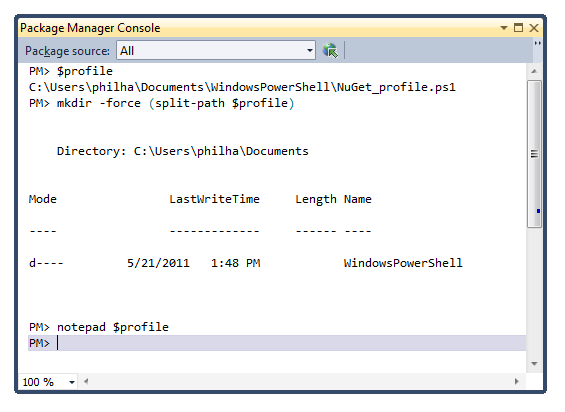
The easiest way to find the profile file is to type $profile within the NuGet Package Manager Console. The profile file doesn't necessarily exist by default, but it’s easy enough to create it. The following screenshot shows a session where I did just that.
nuget-ps-profile

The mkdir –force (split-path $profile) command creates the WindowsPowershell directory if it doesn’t already exist.

Then simply attempting to open the script in Notepad prompts you to create the file if it doesn’t already exist. Within the profile file, you can change PowerShell settings or add new commands you might find useful.

For example, you can cut and paste the code in David’s gist and put it in here. Just make sure to omit the first example line in the gist which simply prints all project items to the console.

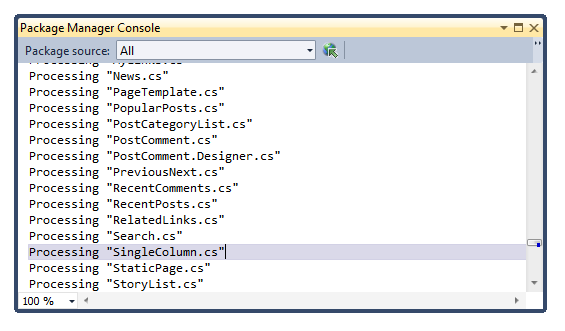
When you close and re-open Visual Studio, the Format-Document command will be available in the NuGet Package Manager Console. When you run the command, it will open each file and run the format command on it. It’s rather fun to watch as it feels like a ghost has taken over Visual Studio.

The script has a Thread.Sleep call for 100ms to work around a timing issue when automating Visual Studio. It can take a brief moment after you open the document before you can activate it. It doesn’t hurt anything to choose a lower number. It only means you may get the occasional error when formatting a document, but the script will simply move to the next document.

The following screenshot shows the script in action.
formatting-documents

With this in place, you can now indulge your OCD and run the Format-Document command to clean up your entire solution. I just ran it against Subtext and now can become the whitespace Nazi I’ve always wanted to be.

What others have said

Requesting Gravatar... Chris May 22, 2011 7:33 AM
# re: An Obsessive Compulsive Guide To Source Code Formatting
I've always been fond of the "perl way" when it comes to formatting source code.

Create a project .perltidyrc with the official formatting options, then apply that to the source during check-in. Then let the users use what formatting they like and stop worrying about formatting.

The real goal should be to always format the code the same way so scm changes are indeed code changes and not style changes. Worrying about formatting for any other reason is really waste of brain cycles imho.

That's not to say that I still don't obsess about formatting. :-)
Requesting Gravatar... friism May 22, 2011 8:27 AM
# re: An Obsessive Compulsive Guide To Source Code Formatting
I don't think the standard keyboard combo for remove-and-sort usings is too bad. With cursor in editor, it's Shift+F10, o, a (i.e. shift+F10 to open right-click menu, 'o' for 'organize usings' and 'a' for 'remove and sort').
Requesting Gravatar... Bradley T. Landis May 22, 2011 9:11 AM
# re: An Obsessive Compulsive Guide To Source Code Formatting
You can always add a keyboard shortcut in the options I have "OrganizeUsings.RemoveAndSort" mapped to Ctrl+R, Ctrl+U.
Requesting Gravatar... Kyralessa May 22, 2011 9:38 AM
# re: An Obsessive Compulsive Guide To Source Code Formatting
Any reason you couldn't use PowerCommands for Visual Studio 2010 to do what you want? It can both remove/sort usings when a doc is saved, and remove/sort usings for a whole project or solution.
Requesting Gravatar... Kyralessa May 22, 2011 9:41 AM
# re: An Obsessive Compulsive Guide To Source Code Formatting
Oops, on closer reading, you did mention it, sorry. *blush* Still, it can do the whole project/solution thing, and you can turn off the "remove/sort on save" feature if you want and just use the solution-wide one.
Requesting Gravatar... Moe Yassine May 22, 2011 10:37 AM
# re: An Obsessive Compulsive Guide To Source Code Formatting
If you REALLY want to be OCD do like me and use Stylecop on every project.... oh man, sometimes I spend days just going back and fixing all the issues that arise, but it's a great tool for enforcing coding standards.
Requesting Gravatar... David Fowler May 22, 2011 10:41 AM
# re: An Obsessive Compulsive Guide To Source Code Formatting
@Kyralessa But suppose you wanted only a subset of projects or ones that ended with *test? The beauty of the ps commands isn't just what they can do, it's how smaller commands can be composed to build more complex commands (See MvcScaffolding). So I with Format-Document you can do:

# Format all test projets
Get-Project *.Test | Format-Document
Requesting Gravatar... KierenH May 22, 2011 3:06 PM
# re: An Obsessive Compulsive Guide To Source Code Formatting
Classic...
"PM Code"
"But hey, I was first"
Requesting Gravatar... Derek Morrison May 22, 2011 3:13 PM
# re: An Obsessive Compulsive Guide To Source Code Formatting
Whoops - seems you meant the PowerCommands extension for formatting on save. I don't see anything for this in the Productivity Power Tools extension.
Requesting Gravatar... haacked May 22, 2011 3:31 PM
# re: An Obsessive Compulsive Guide To Source Code Formatting
@Derek thanks! I always get the two mixed up. :)
Requesting Gravatar... Spikeh May 22, 2011 4:45 PM
# re: An Obsessive Compulsive Guide To Source Code Formatting
I'm definitely anal about my source code - everything from C# all the way through to T-SQL. I also tend to spend a lot of time on project set up - creating relevant namespaces and class names etc - so much so that I probably spend 50% of my time refactoring as requirements change!

It really makes a difference when you come back to an app 6 months later when the client wants some changes :)
Requesting Gravatar... SondreB May 22, 2011 4:56 PM
# re: An Obsessive Compulsive Guide To Source Code Formatting
How can you forget to mention anything about moving the using keywords inside the namespace declaration and oppose to having them outside the namespace? Some class templates in Visual Studio, at least some of the extensions such as Windows Phone 7, actually have the using inside the namespace.

There are some differences in the actual loading of the assemblies when this is done, but either case, the namespace makes more sense and value as the top first element in a source file.

What are your thoughts and preferences on namespace/using placement?
Requesting Gravatar... Brandon May 22, 2011 9:49 PM
# re: An Obsessive Compulsive Guide To Source Code Formatting
Couple of things to add
1) I mapped (via Tools | Options | Environment | Keyboard) Remove & Sort Usings to Ctrl+R, Ctrl+S and it works great
2) Addin for VS2010 called PowerCommands will automatically Remove & Sort AND Format Document whenever you save a file, great thing w.r.t. this article.
Requesting Gravatar... ehei May 22, 2011 10:09 PM
# re: An Obsessive Compulsive Guide To Source Code Formatting
Resharper from JetBrains is great if you're doing C#. Much better refactoring support than the built-in stuff, and it'll do things like remove OR ADD using statements.
Requesting Gravatar... I.Love.NArrange May 23, 2011 12:30 AM
# re: An Obsessive Compulsive Guide To Source Code Formatting
I love NArrange, is very useful to reorganize code, it helps to order alphabetically all methods, properties, fields, etc., and surrounds them with regions, and is opern source; another tool I used all the time is GhostDoc, not open source but free, it is very useful to document all your code and is all automated and well formatted; and I use also StyleCop, it doesn't do anything for me but tells me what I did wrong so I get it right. All of them are essential for me.
Requesting Gravatar... Keyvan Nayyeri May 23, 2011 4:13 AM
# re: An Obsessive Compulsive Guide To Source Code Formatting
Nice to see you writing on this. I had a post about it and how to implement a VS add-in back in 2008:

www.nayyeri.net

I really hate to open a code that has formatting issues. I'd like to see the code in the standard formatting done by VS.
Requesting Gravatar... Jason Williams May 23, 2011 5:01 AM
# re: An Obsessive Compulsive Guide To Source Code Formatting
If you want tidy code but don't want to do all the work, a VS add-in worth a look is AtomineerUtils Pro Documentation. This is similar to GhostDoc, only much more powerful as it instantly creates/updates documentation comments for C#, VB, C++, C++/CLI, C, or Java code, in any of DocXML, Doxygen, Qt or JavaDoc formats. The comment style is extremely configurable, and it offers many time-saving formatting features like word wrapping, allowing us to easily achieve perfect docs so we can focus the power of our OCDs on the code itself :-)
Requesting Gravatar... Luciano Evaristo Guerche (Gorše) May 23, 2011 11:08 PM
# re: An Obsessive Compulsive Guide To Source Code Formatting
I use "Remove And Sort Using" plugin visualstudiogallery.msdn.microsoft.com to achieve same results.

Cory Cissell's other plugins are also a must have for me:
visualstudiogallery.msdn.microsoft.com/.../search[0].Type=User&f[0].Value=Cory%20Cissell&f[0].Text=Cory%20Cissell

Cheers.
Requesting Gravatar... Max May 23, 2011 11:56 PM
# re: An Obsessive Compulsive Guide To Source Code Formatting
you can use CodeMaid plugin to remove usings and format code on Save action!
Requesting Gravatar... Rory Primrose May 24, 2011 8:08 AM
# re: An Obsessive Compulsive Guide To Source Code Formatting
R# + StyleCop + StyleCopForReSharper = GOLD!
Requesting Gravatar... Mike May 24, 2011 11:06 AM
# re: An Obsessive Compulsive Guide To Source Code Formatting
While I'm all for having the source formatted to be picture perfect, it plays havoc with source control, diff tools and merging.
Requesting Gravatar... Mbb May 24, 2011 7:36 PM
# re: An Obsessive Compulsive Guide To Source Code Formatting
I don't know why you say 'most developers I know are pretty anal about the formatting of their source code'. In my experience it has been the opposite.
Requesting Gravatar... Justin May 24, 2011 9:05 PM
# re: An Obsessive Compulsive Guide To Source Code Formatting
I don't consider myself to obsessive about formatting as long as it is clean, easy to read, and consist.

I do how ever have a hang up on ordered and sorted using statements. I really wish there was a shortcut for that!
Requesting Gravatar... Brandon May 25, 2011 9:02 AM
# re: An Obsessive Compulsive Guide To Source Code Formatting
I want to work with your developers Phil...most of the devs I've worked with write poorly formatted code. On most projects it's all I can do to promote standard naming conventions.
Requesting Gravatar... Wanda Wandtattoos May 25, 2011 7:47 PM
# re: An Obsessive Compulsive Guide To Source Code Formatting
This is great. From now on i will format my code just like this!
Requesting Gravatar... rtpHarry May 26, 2011 7:10 PM
# re: An Obsessive Compulsive Guide To Source Code Formatting
I would say that the vast majority of developers don't care about their source code formatting. I don't understand it myself as I don't know how they can keep a clear map of the code in their heads when its so messy. I guess a lot of developers are just 'programming by coincidence'.

You made some interesting points in this, I think my main take away was that I really need to learn some basic powershell commands :)

I am really surprised that anyone cares about the remove and sort of using statements. They seem like one of the most pointless things in the world to me?

I don't really see any point in them when visual studio is clever enough to resolve a statement I type and give me the option to insert the using statement then can't it just figure it out itself and stop wasting everyone's time with usings? The only time I see a using statement being of any use is to clarify in the odd situation that two names conflict. Maybe im oversimplifying the problem a bit but surely this is something that should be automated to some level?
Requesting Gravatar... haacked May 29, 2011 1:43 PM
# re: An Obsessive Compulsive Guide To Source Code Formatting
@Mike That's exactly why I think it's important to stick to a standard format. So it doesn't change willy nilly.

@Brandon you can! Just start contributing to NuGet. :P
Requesting Gravatar... Dave Jun 03, 2011 11:14 AM
# re: An Obsessive Compulsive Guide To Source Code Formatting
One word: ReSharper. The end.
Requesting Gravatar... Phil Fearon Jun 05, 2011 6:55 AM
# re: An Obsessive Compulsive Guide To Source Code Formatting
Ever tried virtual-formatting for code? I've been studying this concept recently, specifically for XML/XSLT but the concept should be portable.

With this, the code is always indented perfectly by the editing environment, relying on a dynamic context-aware left-margin, no indent characters. Coding style is controlled through line-feeds alone. Drag-and-drop, copy/paste operations just work without the usual formatting clean-up afterwards.

Such auto-indentation provides strong visual clues where there are un-matched opening/closing characters/tags (comments are parsed and formatted if they contain code snippets). Downside: To prevent code jumping around the screen too much, a high degree of auto-completion is required, this works well with XML but won't suit all languages and developers' coding styles.
Requesting Gravatar... Tim Abell Jun 06, 2011 10:10 PM
# Relevant stack overflow question
Stack overflow had a question like this: stackoverflow.com/...
Requesting Gravatar... chrissie1 Jun 09, 2011 10:34 PM
# re: An Obsessive Compulsive Guide To Source Code Formatting
Needs a little addition to work with vb files too.

if(!$item.ProjectItem.Name.EndsWith(".vb"))
{
$Item.ProjectItem.Document.DTE.ExecuteCommand('Edit.RemoveAndSort')
}

because Edit.RemoveAndSort will not work in vb files
Requesting Gravatar... David McBroom Jan 11, 2012 3:16 PM
# re: An Obsessive Compulsive Guide To Source Code Formatting
This posting is a perfect fit for me - I have a preferred format style and OCD. Some of my customers have their own standards, though. Does anyone know of script of tool that would allow me to work using my own style, then reformat to standard when i check in?

What do you have to say?

(will show your gravatar)
Please add 1 and 4 and type the answer here: